
Team
Teammates save you hours on routine work. Describe a job in a sentence, and a teammate does it on its own while Fluent runs: it drafts replies to your support emails, warns you before a free trial charges you, or chases a refund until it's paid. Team is in beta.
Your team is in the chat window: click Team in its sidebar.
Hire A Teammate
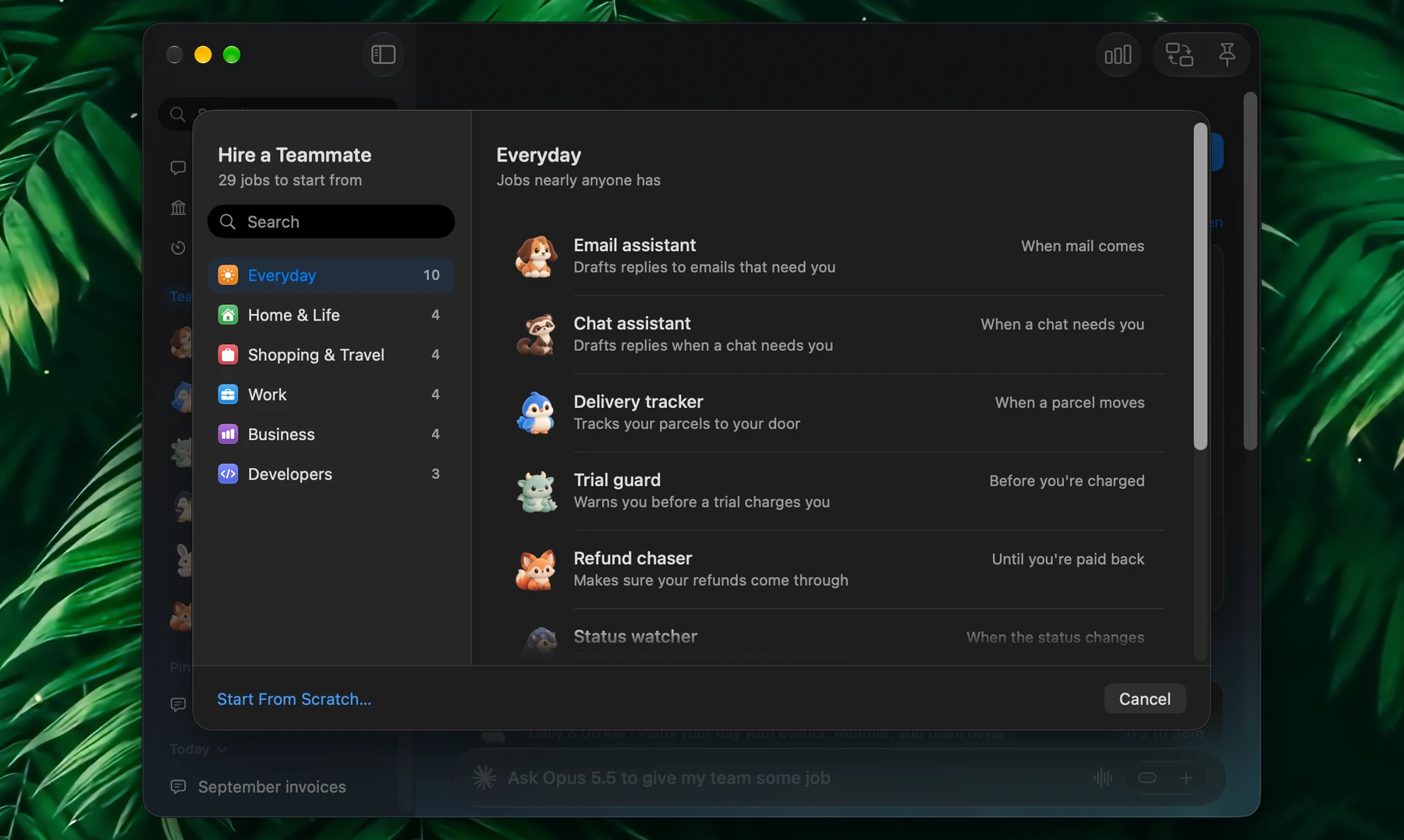
On the Team page, click Hire a Teammate:
- Using a Template… shows 29 ready-made teammates. Pick one and click Hire….
- From Scratch… starts a chat that begins "Hire someone to ", for you to finish.
Or type the job into the Team page's prompt box:
- "Draft replies to my support emails"
- "Tell me when the IKEA BILLY bookcase goes below €70"
- "Every Friday at 16:00, write my weekly recap from my calendar and sent mail"
Fluent then asks what only you know, one question at a time, such as which email account, or how many days before a charge to warn you. It hires the teammate with a name, a role and its jobs, and gives it a face: one of the Pet characters.
A chat that already does the work can become a teammate: right-click it in the sidebar and choose Make a Teammate…, or drag it onto Team.
Templates
| Group | Teammates |
|---|---|
| Everyday | Email assistant, Chat assistant, Delivery tracker, Trial guard, Refund chaser, Status watcher, Morning briefer, To-do catcher, News curator, Downloads tidier |
| Home & Life | Meal planner, Bill keeper, Apartment scout, Slot hunter |
| Shopping & Travel | Deal hunter, Trip planner, Gift finder, Thread follower |
| Work | Meeting prepper, Follow-up keeper, Recap writer, Job hunter |
| Business | Payments clerk, Review responder, Reddit scout, Competitor analyst |
| Developers | Build doctor, Issue triager, Release reader |
The Morning briefer plans your day, and its brief also tells you what the rest of your team got done, each line beside that teammate's face.
How A Teammate Works
A teammate's work is its jobs, and each job starts on its own:
| Starts | For example | How |
|---|---|---|
| When something comes in | New mail, a chat message, a parcel update, a price drop, a new listing | Fluent checks the page, the site's unread count or the app's badge itself, as often as every minute, and asks the model only when something changed |
| At set times | A plan every morning, a recap every Friday | It runs one of your actions on its schedule, see Actions |
Then it does the work with your apps, sites, actions and integrations: it drafts, files and reminds, and asks before changes. A tool set to Ask Before Running waits for your Approve. When it's done, the teammate reports to you in its conversation and notifies you.
Each teammate answers with your default model, or one of its own. A check that finds nothing new costs no request.
The Team Page
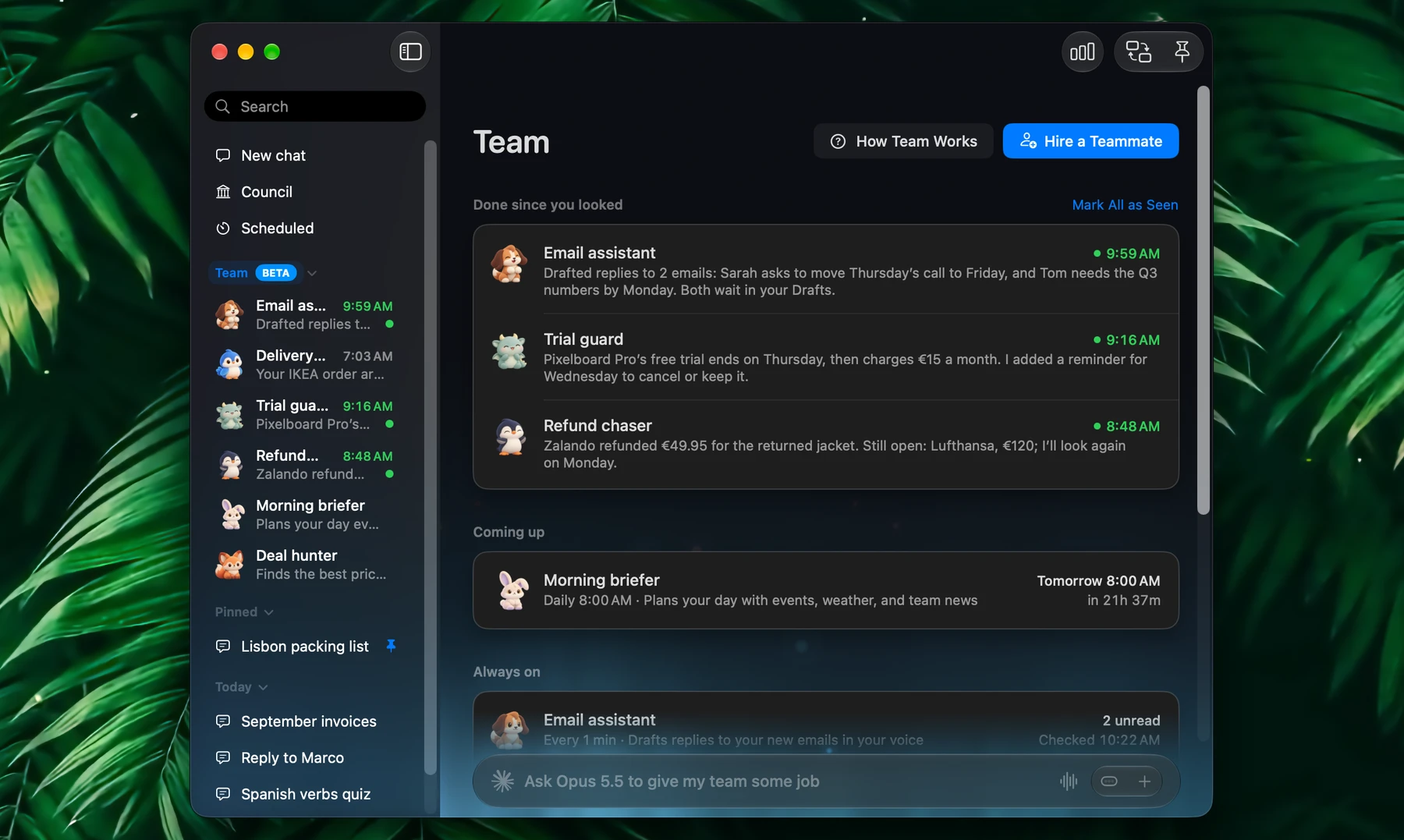
| Section | Shows |
|---|---|
| Needs you | Approvals waiting for you, with Approve and Reject, and jobs that need fixing, with Fix It, which asks the teammate to fix it in its conversation |
| Done since you looked | What your teammates finished. Click one to open its teammate's page; Mark All as Seen clears the list |
| Coming up | Work at set times, soonest first |
| Always on | Jobs that start when something comes in, with how often each checks, or Live for a page that updates itself |
Team Stats, in the toolbar, shows the time your team saved you, in all and by teammate. Fluent estimates how long the work would have taken you by hand, once a stretch of it is done.
A Teammate's Page
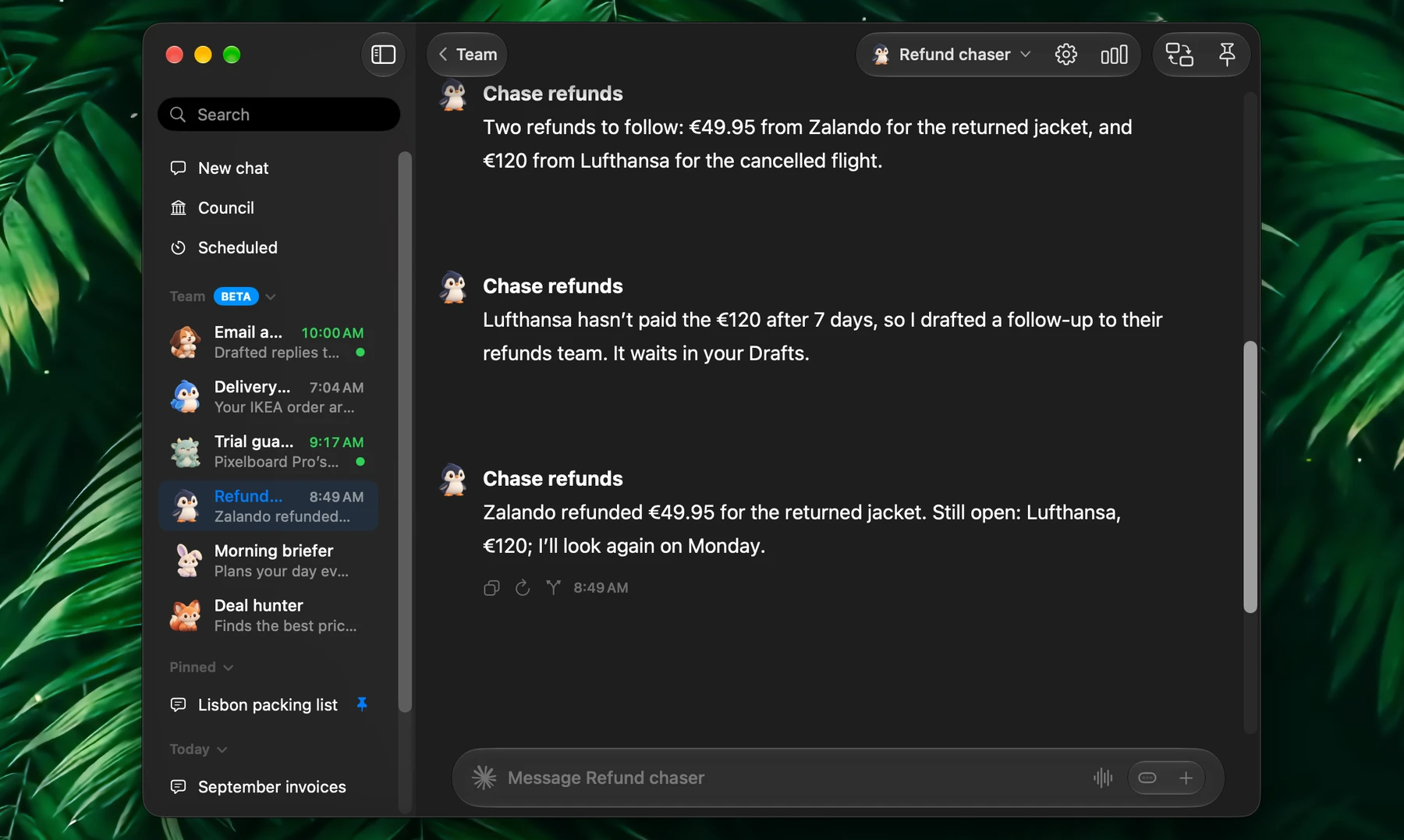
Click a teammate in the sidebar to open its page: your conversation with it, with its reports in it. Ask it things, or change its work in your own words:
- "What came in this morning?"
- "Only tell me about parcels that need me"
- "Also follow my Zalando return"
Notebook and Jobs, the gear in the toolbar:
- Notebook: notes it keeps in mind in all its work (Add a note…), and files it reads when its work needs them (Add Files…, or drop files and links on it). To give it a chat, right-click the chat in the sidebar and choose Add to Notebook.
- Jobs: each job with when it runs. Right-click one for Run now, Change Schedule…, Edit action or Remove Job…. Add a Job… asks for one in its conversation.
Click its name, at the end of the toolbar, for its menu. Right-clicking its row in the sidebar shows the same one:
| Item | What it does |
|---|---|
| Run now | Runs one of its jobs now, or All Jobs |
| Pause / Resume | Stops its work until you resume it |
| Keep Mac Awake | While your Mac is plugged in, it doesn't sleep on its own, so this teammate's checks go on all night. The display still turns off; on battery, or with the lid closed, the Mac sleeps as usual |
| Character | Its face |
| Model, Reasoning | Its own model and thinking level, or the ones in Settings |
| Notifications | When Work Is Done, Only When It Needs You or Off |
| Let Go… | It leaves the team, and its jobs and reports go with it. Choose whether the actions made for it go too |
What Teammates Need
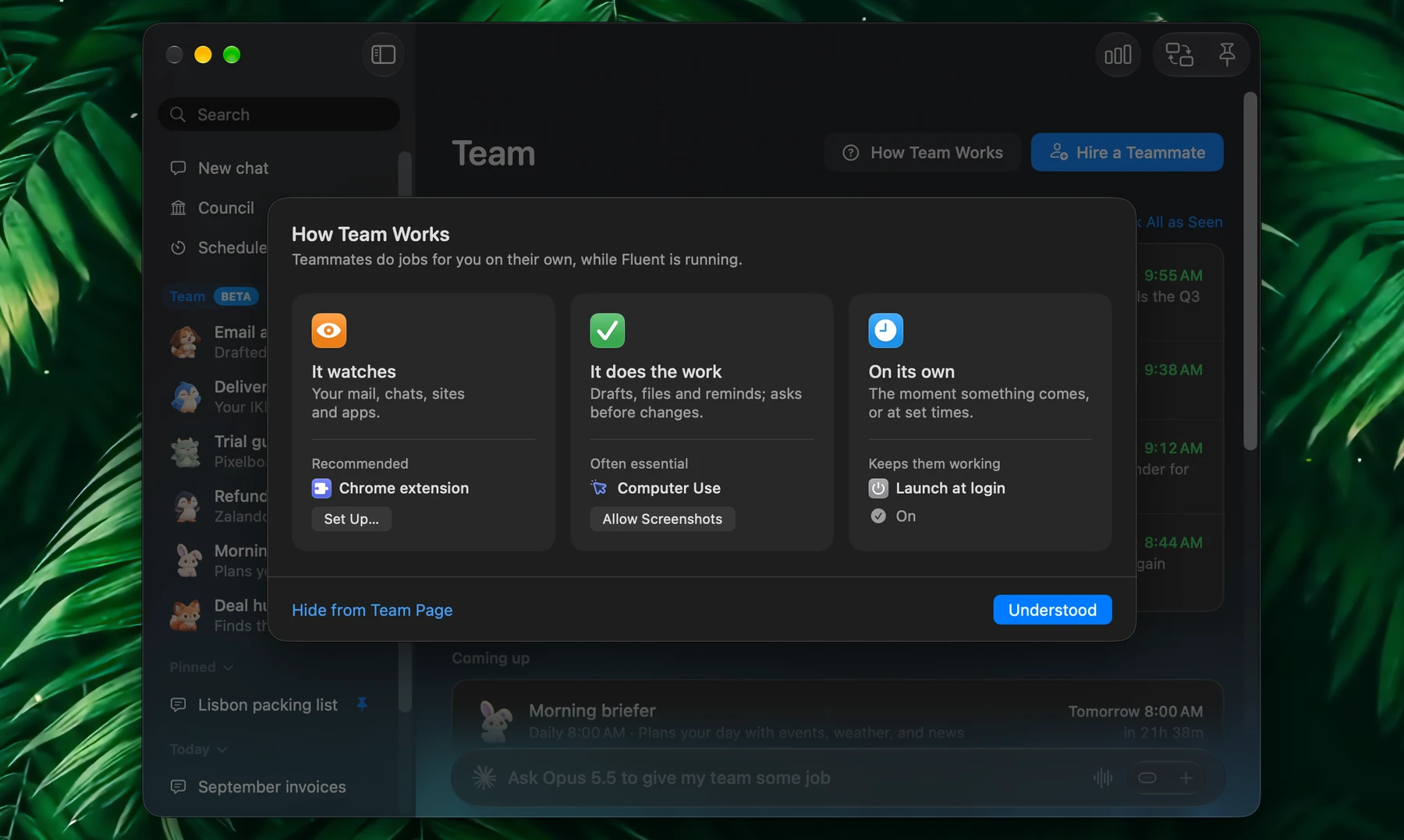
How Team Works, on the Team page, shows what teammates need and turns it on:
| Why | ||
|---|---|---|
| Computer Use, often essential | Teammates read and act in your apps and browser through it. It needs Accessibility and Screenshots | Turn On, Allow Accessibility, Allow Screenshots |
| Chrome extension, optional | Recommended for the most powerful background work: teammates work in background tabs, even while you're away. Without it, Fluent still works in your browser, signed in as you, through Computer Use | Set Up…, see Computer Use |
| Launch at login | Teammates work only while Fluent runs | Turn On |
To take the How Team Works button off the Team page, click Hide from Team Page in its sheet. Turning off Hide help button in Settings → Chat UI → Team brings it back.
Teammates work while Fluent is running and your Mac is awake. When the Mac wakes, their checks look again at once, and work at set times that came due meanwhile is made up once, while it's still closer to its own time than to the next run. To keep a teammate on time, turn on Keep Mac Awake in its menu, or Wake Mac to run in a job's Change Schedule…; see Actions.
Good To Know
- Teammates use the integrations, Memory and approvals you've set in Settings: what asks before running asks for them too.
- A teammate's runs are its chats, listed on its page, not under Today in the sidebar.
- Scheduled actions keep working without any teammate. A teammate can take one on: it keeps its schedule, and its results come to you from the teammate.